can you play frozen games? Where to start
Yes, can you play frozen games? You can find Frozen-themed mobile games, browser games, and experiences inside some larger video games. What is available depends on your device, country, and whether a game is still supported.
This guide explains where to look, how to choose a suitable option, and what to check before downloading or paying. It also clears up a common mix-up: a game featuring Elsa or Olaf is not always a standalone Frozen game. Use the platform and safety tips below to find a version that works for your family without wasting time on outdated links or misleading downloads.
can you play frozen games? Yes—here are the main options
Yes. Frozen-themed games are available in several formats, including mobile apps, web games, and larger titles that feature Frozen characters or settings. The exact choices change over time because games can be removed, updated, or made incompatible with older devices.
The simplest place to start is the official app store for your phone or tablet. Search for a game by its full title, then confirm the developer, age rating, device requirements, and recent update information before installing it. If you are looking for a browser game, use a reputable site and check whether the game actually runs in your browser before sharing personal details or installing anything.
On consoles and computers, Frozen content may appear as part of a broader game rather than a separate Frozen adventure. For example, Disney Dreamlight Valley includes Frozen characters and a themed area. That is a larger life-simulation game, not a standalone game focused only on the films.
There is no single answer for every device. A title that works on one phone may not appear in another country’s store, and an older game may no longer run on a current operating system. Check the current listing or platform requirements rather than relying on an old video or download link.
Types of Frozen games and where to find them
Different kinds of games suit different players. Some focus on matching puzzles, while others offer story missions, dress-up activities, or a wider world to explore. The table below can help you choose a starting point.
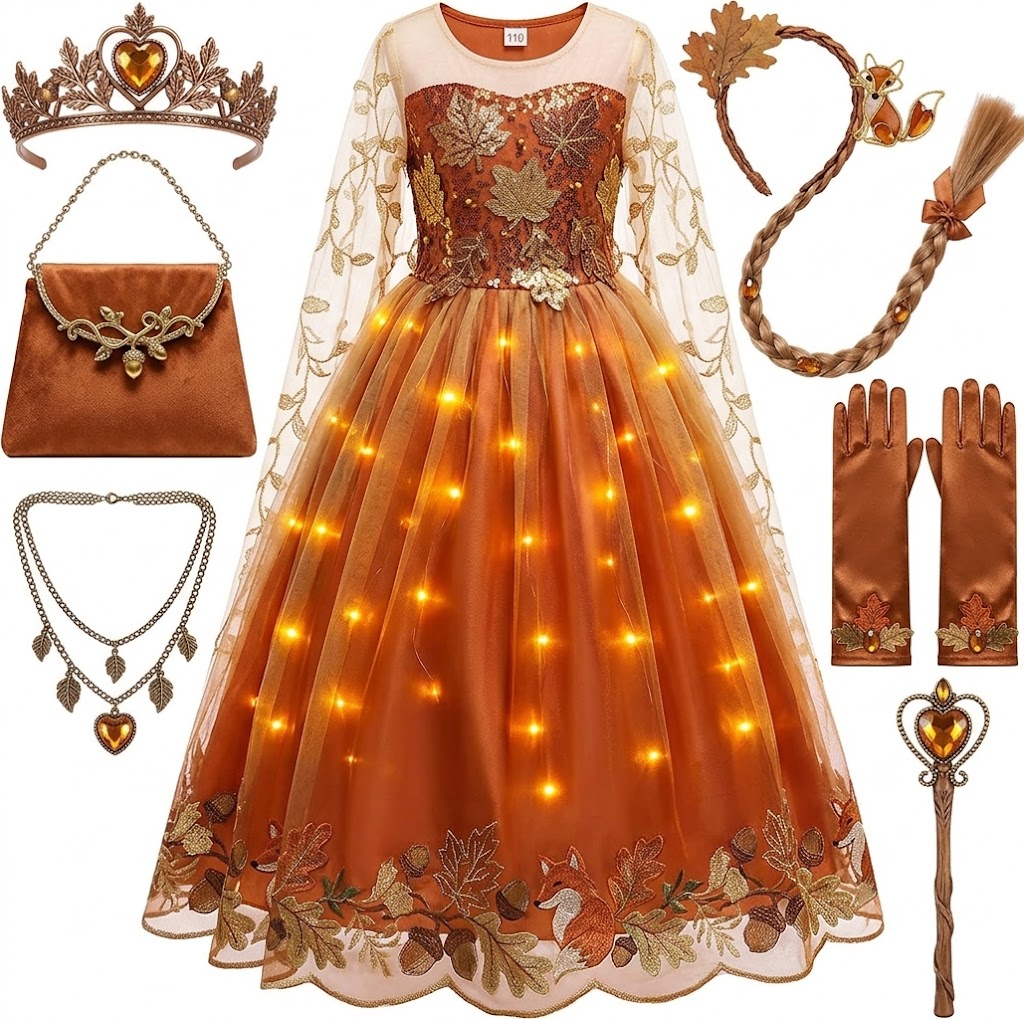
Princess Dresses for Girls Light Up Princess Costume for Christmas Halloween Toddler Princess Dress Up Clothes
Check Price on Amazon| Game type | Where to look | What to expect | Best for |
|---|---|---|---|
| Mobile puzzle games | Apple App Store or Google Play | Short levels, matching, collecting, or decorating; optional purchases may be offered | Quick play on a phone or tablet |
| Browser games | Reputable children’s game or entertainment sites | Simple activities that run in a web browser; availability can change | Trying a short game without installing an app |
| Frozen content in a larger game | Console and PC game stores | Frozen characters or settings within a game with other themes and activities | Players who want more than a film tie-in |
| Older console or handheld titles | Authorized digital stores or reputable used-game sellers | Availability depends on the platform, region, and current support | Players with compatible older hardware |
| Unofficial fan games | Independent websites | Quality, permissions, and safety standards vary widely | Only players who can verify the site and understand the risks |
A game’s category does not guarantee that it is free. A free download may include advertisements, optional purchases, or a subscription. Read the store page and any payment details before a child starts playing.
How to find a game that works on your device
Use these steps to avoid downloading an incompatible or misleading app.
- Choose the device first. Decide whether the game should run on an iPhone, Android phone, tablet, computer, or console. Each platform has its own store and technical requirements.
- Search for the full game title. Broad searches can return fan pages, videos, and unrelated games. If you already know a title, enter its exact name in the platform’s official store.
- Check the publisher and listing. Confirm who made or published the game. A Frozen image or character name does not prove that Disney made or approved the app.
- Review compatibility. Look at the supported operating system, device requirements, and whether the listing says the app is available in your region. An old review may describe a version that no longer works.
- Read the cost details. Check the price, in-app purchases, ads, and subscription terms. If a child will play, set purchase approval or parental controls before handing over the device.
- Install only from a trusted source. Avoid unfamiliar download buttons, unofficial app files, and sites that ask you to disable device security. A browser game should not need an unexpected program installation.
If the exact title does not appear in the official store, it may be unavailable for that device or region. It may also have been removed or retired. Do not assume that a copy found on a separate download site is safe or authorized.
What Frozen mobile games are like
Mobile games are often the easiest option for short sessions. A common format is a match-three puzzle: you swap nearby pieces to line up matching colors or shapes and meet a level goal. Other mobile activities may involve collecting characters, decorating a setting, or completing simple tasks.
Before installing, look beyond the screenshots. The description should make clear whether the game needs an internet connection, offers optional payments, or includes ads. Check the age rating as well. Ratings are a starting point, not a guarantee that every feature suits your household.
Some games have energy systems, timers, or daily rewards that encourage players to return. These features can be harmless, but they may also lead to repeated prompts or pressure to make purchases. If that is a concern, review the device’s parental controls and payment settings before play.
Also check whether progress is tied to an account. A game might offer cloud saves or social features, but those can involve account creation or data sharing. A child should not enter a full name, email address, location, or other personal information without a parent or caregiver’s approval.
Can you play Frozen games in a web browser?
Sometimes. Browser games may run directly on a website, which can be convenient when you want to try a quick activity without installing an app. However, older browser games may no longer work because the site has changed or the technology they relied on is no longer supported.
Use a known, reputable website rather than clicking the first result that promises a free game. Check that the web address looks correct, avoid pages covered in misleading download buttons, and leave if the site asks for unnecessary personal details. A legitimate browser game should not require you to install a suspicious file or turn off security protections.
Some sites use ads or links to other games. For a child, it is sensible to supervise the first visit and check what appears around the game screen. A game that starts in the browser can still expose the player to advertisements, tracking, or links away from the page.
If the game does not load, the issue may be the site rather than your device. Try a current browser or another trusted platform instead of installing a plug-in from an unknown source. Never treat a “play now” button as proof that the page is official.
Upright Freezer Organizer Bins, Freezer Baskets for 14, 15 cu.ft Standup Freezer, Wire Storage Baskets with Built-in Handles for Frozen Foods,
Check Price on AmazonFrozen characters inside larger video games
Some players want to visit a familiar setting or interact with characters rather than play a game devoted only to the movies. In that case, check larger games that include licensed characters or themed areas. Disney Dreamlight Valley is one example: it is a broader life-simulation game that features Disney characters, including characters from Frozen.
That distinction matters when deciding what to buy. A game with a Frozen area may also contain many other characters, activities, and systems. Read the current product description to see how much of the game involves Frozen content, and check the platform and edition before purchasing.
Content can differ between versions, updates, and platforms. A video showing a particular character or area does not necessarily mean every edition includes it in the same way. Check the game’s current official store page for supported devices and included content.
Older handheld and console games may also appear through secondhand sellers or platform libraries. Before buying, confirm that the game works with the hardware you own. A physical cartridge or disc may require a specific console generation, and an old digital purchase may not be offered for new accounts.
How to choose the right option for a child
Start with the child’s age, reading ability, and comfort with puzzles or controls. A short matching game may suit someone who wants simple rounds, while a larger simulation game can involve more menus and longer play sessions. A familiar character does not automatically make a game easy for every child.
Review the age rating and the game’s features together. Check for ads, online chat, user-generated content, location access, and in-app purchases. If the listing does not explain a feature clearly, look for the platform’s privacy and parental-control information before allowing play.
Set purchase protections before the game is installed. You can require a password or adult approval for purchases through the device’s family settings. This helps prevent accidental charges, especially in free-to-play games where optional purchases may appear during play.
Agree on practical boundaries, too. Decide when the child can play, where the device can be used, and whether the game needs to be played with an adult nearby. These simple rules are easier to apply before the first session than after a purchase prompt or online interaction appears.
Why a Frozen game may be missing or not working
A missing listing does not necessarily mean you searched incorrectly. A game may be restricted to certain countries, discontinued, unavailable for a newer operating system, or removed by its publisher. Store catalogs also differ between mobile devices, consoles, and computers.
If an installed game will not open, check for an available update and restart the device. Confirm that the device has enough storage and meets the game’s stated requirements. If the title depends on online services, those services may no longer be active even when the app remains installed.
Do not delete an old game before checking whether its progress can be restored. Some games save progress only on the device, while others require an account or cloud connection. Removing an app can erase local data, so review the game’s save options first if the progress matters.
Be cautious with websites offering modified versions or “unlocked” copies of paid apps. Such files can contain unwanted software, steal account details, or break the game. A safer choice is to use an authorized store or select another available title.
Common mistakes to avoid when searching
- Assuming every result is official. Search pages mix apps, fan content, videos, and unrelated products. Check the developer and platform listing.
- Trusting old recommendations without checking availability. A review may describe a game that has since been removed or stopped receiving support.
- Confusing free to download with free to play. Optional purchases, ads, and subscriptions can affect the experience after installation.
- Installing files from unfamiliar websites. Use official app stores or authorized retailers rather than unverified downloads.
- Buying based only on a character image. Read the product description to confirm the game’s actual content and device compatibility.
One detail many players overlook is that a game can remain visible in an old article or video long after it stops working. Treat older recommendations as clues, not current availability checks. The store listing and publisher information are more useful for deciding what you can play now.
Yes, can you play frozen games? Mobile puzzles and browser activities are common starting points, while some larger games include Frozen characters or settings. Availability depends on your device and region, so confirm that a title is supported before installing or buying it.
Choose one official store or trusted website, check the developer, age rating, compatibility, and payment details, then set parental controls if a child will play. That quick check helps you find a suitable game and avoid outdated or unsafe downloads.