why is my epic games launcher frozen: Fix it fast
If you are asking why is my epic games launcher frozen, the usual causes are a stuck background process, damaged launcher cache, network trouble, or an update that has not finished. Start by closing the launcher completely and reopening it; then check Epic’s service status before changing settings.
This guide walks you through safe fixes in order, from quick checks to cache cleanup and reinstalling. It also explains how to tell a frozen launcher from a slow download, what to do on Windows or Mac, and which tempting fixes can make things worse. Follow the steps one at a time so you can identify the cause instead of changing several things at once.
why is my epic games launcher frozen? Start with these checks
A launcher that looks frozen may be fully unresponsive, or it may still be loading, updating, signing in, or processing a download. The distinction matters: force-closing an active update can interrupt it, while waiting indefinitely will not fix a crashed process.
First, note what is actually stuck. Is the whole window blank, does the sign-in screen never appear, or does only a download remain at the same percentage? Move the pointer and try a harmless action, such as opening a menu. If the window does not respond for several minutes and the launcher’s process shows no activity, treat it as unresponsive.
Check Epic Games’ public status page for a service incident before troubleshooting your computer. A sign-in outage can look like a local freeze, and local cache changes will not resolve a server-side problem. If services are operational, try the fixes below in order.
Quick fixes to try before changing settings
- Give an active update a little time. A launcher update or first start after an update can take longer than usual. If a progress indicator changes, let it finish; avoid ending the task mid-update.
- Close and reopen the launcher. Use the window’s close button, then wait a few seconds and start Epic Games Launcher again. Closing the window may leave its background process running, so use the full-stop steps below if it returns in the same frozen state.
- Restart your computer. This clears temporary process conflicts and can release files another launcher process is using. Save work in other apps first.
- Check your connection. Open a few unrelated websites. If they also stall, resolve the internet connection before troubleshooting Epic. If possible, test a wired connection or another trusted network.
- Disconnect a VPN or proxy temporarily. Some network routes or filtering settings can interrupt sign-in. Only do this if it is safe and permitted on your network, and turn the VPN back on after the test.
Change one thing at a time, then reopen the launcher and check whether the symptom changes. That makes it easier to identify the real cause and undo a fix that did not help.
Fully close Epic Games Launcher on Windows or Mac
Windows
Press Ctrl + Shift + Esc to open Task Manager. Find Epic Games Launcher in the list, select it, and choose End task. If separate Epic Games Launcher or EpicWebHelper entries remain, close those too, but do not end unrelated processes you cannot identify.
Wait briefly, then launch Epic Games Launcher from the Start menu or its normal shortcut. If you see a Windows update or launcher update in progress, allow it to finish instead of repeatedly ending the task. Repeatedly starting the app while an old process is still running can leave several processes competing for the same files.
Mac
Choose Force Quit from the Apple menu, select Epic Games Launcher, and confirm. If it stays open, use Activity Monitor to find the launcher process and quit it there. Reopen it from the Applications folder, rather than launching a second copy from a different location.
If macOS says the app cannot be opened or needs permission, that is different from a simple freeze. Check the alert carefully and use macOS security settings only for an app you obtained from Epic’s official source. Do not bypass a warning for an unknown or modified installer.
Clear the launcher cache without deleting games
A damaged temporary web cache can prevent the store, library, or sign-in page from loading correctly. Clearing the launcher’s web cache is a practical next step when the window opens but displays a blank page, spins endlessly, or freezes around sign-in. It should not remove installed games, but it may sign you out and reset temporary page data.
Clear the cache in Windows
- Fully close Epic Games Launcher using Task Manager as described above.
- Press Windows key + R, enter
%localappdata%\EpicGamesLauncher\Saved, and press Enter. - Look for folders named
webcacheorwebcachefollowed by a number. Delete those cache folders only. - Leave other folders and files in
Savedalone. Reopen the launcher and sign in again if asked.
If the folder does not exist, do not create one just to follow the step. Move on to the next check. Windows may also keep a separate cache folder with a numbered suffix, so remove matching webcache folders rather than deleting the entire launcher data directory.
Clear the cache on Mac
Quit the launcher first. In Finder, use Go > Go to Folder, enter ~/Library/Caches/com.epicgames.EpicGamesLauncher, and remove the launcher cache contents if that folder exists. Reopen the app and allow it to rebuild temporary data.
Do not delete the game installation folders or unrelated files from your Library. If the path is absent or differs on your system, skip this step rather than removing folders based on a guess. The goal is to clear temporary launcher data, not reset your Mac or erase game saves.
Compare the likely cause with the right fix
| What you see | Likely cause | Best first action | Best for |
|---|---|---|---|
| Blank or endlessly loading store page | Damaged cache or connection issue | Check service status, then clear web cache | Launcher opens but content does not |
| Window will not respond at all | Stuck process or startup conflict | End the process, restart the computer, reopen | Frozen window or sign-in screen |
| Launcher opens, but login fails | Service, network, VPN, or account issue | Check service status and test a normal connection | Sign-in loops or errors |
| Only a game download stalls | Network, storage, or download queue issue | Check connection, available disk space, and queue | Launcher controls still work |
| Launcher freezes after security software changes | Blocked connection or app files | Review the security alert and approved app rules | New firewall or antivirus behavior |
Check your network, firewall, and security software
The launcher needs to connect to Epic’s services for account sign-in, store content, library details, and downloads. A connection can work for ordinary websites while a firewall, proxy, VPN, or managed network blocks a particular app. Test the launcher on a different trusted connection if one is available.

Upright Freezer Organizer Bins, Freezer Baskets for 14, 15 cu.ft Standup Freezer, Wire Storage Baskets with Built-in Handles for Frozen Foods,
Check Price on AmazonRestart your router only if other devices or apps also have connection problems. If only Epic is affected, inspect any recent changes to VPN, proxy, firewall, or antivirus settings. Look for a specific blocked-app notice and allow the official Epic Games Launcher if the software offers a safe, clear option.
Do not turn off your firewall or antivirus as a permanent fix. Broadly disabling protection can expose your computer, and it may not address the cause. If you temporarily test a security setting, keep the test brief, restore the protection immediately, and avoid downloading installers from third-party sites.
On a work, school, or shared network, an administrator may restrict game services. Do not try to bypass those controls. Ask the network administrator or use a personal network where gaming traffic is allowed.
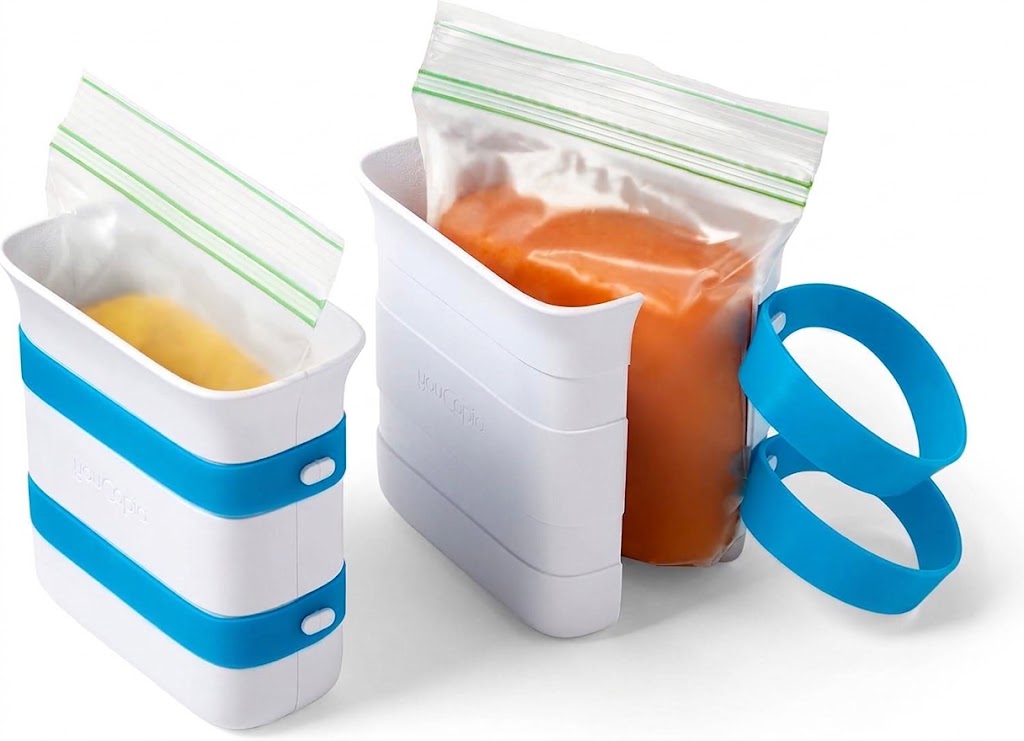
YouCopia FreezeUp Freezer Food Block Maker, 2 Cup, 2-Pack,
Check Price on AmazonMake sure the computer has room and updates are complete
Low storage can interfere with launcher updates and game downloads, even if the launcher itself still opens. Check that the drive used for the launcher and the drive used for the game have enough free space for the pending operation. Updates can need additional temporary room while files are being downloaded and replaced.
Install pending operating-system updates if your computer has been waiting for a restart, then restart before trying Epic again. Do not interrupt an operating-system update to get the launcher open. If the freeze began immediately after a system or graphics update, note that timing; it can help distinguish a compatibility issue from a cache problem.
Also check that your computer’s date and time are set correctly. Incorrect system time can interfere with secure sign-in connections. Use automatic date and time settings if they are available and appropriate for your device.
Run the launcher with the right permissions
On Windows, a permission issue can sometimes prevent the launcher from updating or writing files. If the launcher displays an access error, right-click its shortcut and choose Run as administrator for a single test. If that resolves the specific error, review the app’s folder permissions rather than making administrator mode your default for every launch.
Do not run the app as administrator just because it is frozen. Elevated access does not repair a damaged cache or an internet outage, and running apps with more privileges than needed is not a good general habit. On a managed computer, follow the organization’s software rules instead of changing permissions yourself.
If the launcher is installed on an external drive, confirm that the drive is connected and accessible before starting it. A disconnected or sleeping drive can make a game library appear unavailable, though it is less likely to explain a completely unresponsive login window.
Repair or reinstall only after simpler fixes
If closing the process, checking the connection, and clearing the cache do not help, reinstalling the launcher may replace damaged program files. Before doing so, make a note of where your games are installed and confirm that you can access your Epic account. The installed games and the launcher are separate, but a reinstall can require you to point the library back to its existing folders or verify game files.
- Download the current launcher installer from Epic’s official website.
- Close the launcher and follow the operating system’s normal uninstall process.
- Restart the computer if the uninstaller or installer requests it.
- Install the launcher from the official installer, then sign in.
- If an installed game appears missing, use the launcher’s install flow to select its existing location when supported. Do not delete the game folder to make it reappear.
Reinstalling should not be the first step for a blank store page; clearing the web cache is less disruptive. It is more useful when the launcher cannot update, its program files appear damaged, or a specific error persists after simpler checks.
If the game freezes but the launcher still works
A frozen game is not the same problem as a frozen launcher. If the store and library remain responsive but a game will not start or stops responding, focus on that game instead. Restart the game, check its listed system requirements, install available game updates, and use the launcher’s file verification option if it is available for that title.
Note whether the game freezes before its first screen, during loading, or only after play begins. That detail can point toward different causes, such as a launch setting, an incomplete update, or a graphics issue. Close other demanding apps for a test and restart the computer before changing drivers or configuration files.
If a game shows an error message, preserve the exact wording. Avoid deleting save data or changing advanced launch options unless the game’s support instructions call for it. Some games store saves locally, in the cloud, or both, so deleting folders without checking can remove progress.
Common mistakes that make troubleshooting harder
- Deleting the whole Saved folder: Remove only the named webcache folders. Other files may contain settings or useful troubleshooting data.
- Repeatedly clicking the frozen window: This will not make a stuck process respond and can make the operating system label it as not responding. Close it once, then end the process if needed.
- Reinstalling games unnecessarily: A launcher issue does not automatically mean game files are damaged. Preserve existing game folders and check them before downloading everything again.
- Disabling all security tools: This creates risk without identifying which rule, if any, is blocking the app. Look for a specific alert instead.
- Changing many settings at once: If the launcher starts working, you will not know which change fixed it. Use one test at a time and keep track of what changed.
Useful distinction: a download that appears stuck is not always a frozen launcher. Check whether the rest of the interface responds and whether the download queue or disk activity changes. If only the download is affected, focus on connection stability and free storage rather than clearing every launcher file.
When to contact Epic Games Support
Contact Epic Games Support if the launcher remains unresponsive after the basic checks, cache cleanup, and a clean reinstall, or if you see a repeatable error you cannot resolve. Include your operating system, the point where the freeze occurs, any error text, and the steps already tried. This helps separate account, service, network, and local installation problems.
Do not include your password, payment details, or security codes in a support request. If you share logs or screenshots, check them for personal information first. For a work or school device, contact its administrator before changing system permissions or security settings.
If you are still wondering why is my epic games launcher frozen, begin with the least disruptive fixes: check Epic’s service status, close any stuck process, restart the computer, and clear only the launcher’s web cache. The symptom can also point to a network block, low disk space, or an incomplete update.
Your next step is to identify whether the entire launcher is unresponsive or only a page or download is stuck, then try the matching fix above. Change one setting at a time, protect your installed game folders, and reinstall the launcher only if the simpler steps fail.